Dhaka ·
  Thimphu ·
  Vancouver · Since 2012
Typing the title, author and details of every book into a register is the reason many libraries never finish cataloguing. An ISBN barcode library app changes the pace of that work. Point a phone camera at the barcode on the back cover, and the app reads the ISBN so the book can be looked up and added to your catalogue in moments rather than minutes.
This how-to guide explains what an ISBN is, how barcode scanning works in practice, how to organise a cataloguing session, and what to do with books that have no barcode. It uses FLEX Library, the library management app from FLEX InfoTech, as a worked example for home, school and community libraries in Bangladesh and Bhutan.
What is an ISBN and why does it help?
An ISBN, or International Standard Book Number, is a unique identifier assigned to a specific edition of a published book. Modern ISBNs have 13 digits and are usually printed as a barcode on the back cover, often near the price. Older books may carry a 10-digit ISBN, sometimes without a barcode.
Because each edition has its own number, an ISBN lets software identify the book precisely. That removes spelling mistakes, inconsistent author names and duplicate entries, which are common problems in hand-written registers. It also makes it easy to recognise when a library holds several copies of the same edition.
How an ISBN barcode library app works
The basic flow is simple. Open the scanner, hold the barcode in front of the camera, and the app captures the ISBN. The app then uses that number to look up the book, and you confirm or complete the details before saving it to your catalogue.
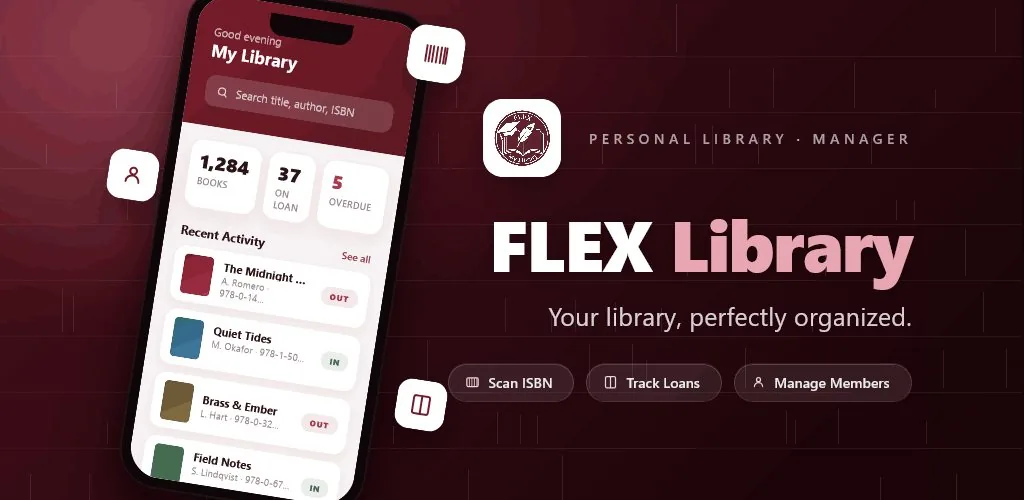
In FLEX Library, you can scan an ISBN with the phone camera, or enter the ISBN on the web app, to look up and add books. Each title can carry authors, genres and a cover image, and you can record multiple physical copies, each with its own shelf location and condition. This title-and-copy structure matters: when you scan a second copy of a book you already hold, you are adding a copy rather than creating a duplicate title.
Step by step: a cataloguing session with an ISBN barcode library app
A well-organised session can process a large number of books in an afternoon. Preparation is the key.
- Set up your shelves and genres in the app first, so each book can be placed correctly as you scan it.
- Work one shelf at a time, left to right, and keep scanned books separate from unscanned ones.
- Scan the barcode, check that the title and author are correct, and assign the shelf and condition.
- Upload or check the cover image where possible, as covers make browsing much easier for members.
- Put books without barcodes on a separate pile to enter manually at the end.
- Finish each session by checking the dashboard totals against the number of books you processed.
Tips for better scanning results
Phone cameras are excellent scanners, but a few practical habits make a noticeable difference, especially in libraries with older or well-used books.
Work in good, even light and avoid strong reflections on glossy covers. Hold the phone steady and parallel to the barcode, at a distance where the whole code is visible. If a barcode is damaged or covered by a price sticker, try the ISBN printed on the copyright page instead and type it in. Clean the camera lens before you begin; it is surprising how often a smudge is the real problem. And if two people are cataloguing together, one can scan while the other handles shelving and condition notes, which keeps the flow moving without bottlenecks.
Handling books without ISBNs
Many collections in South Asia include books without ISBNs: older editions, local publications, religious texts, self-published works, magazines and donated items. These deserve a place in the catalogue too.
Enter them manually with the title, author, genre, shelf and condition. Be consistent with spellings, especially for transliterated Bangla, Nepali, Hindi or Dzongkha names, so members can find them through search. Agree a simple style rule before you start, for example how to write author names, and stick to it. Doing this once, carefully, saves confusion for years.
After cataloguing: putting your data to work
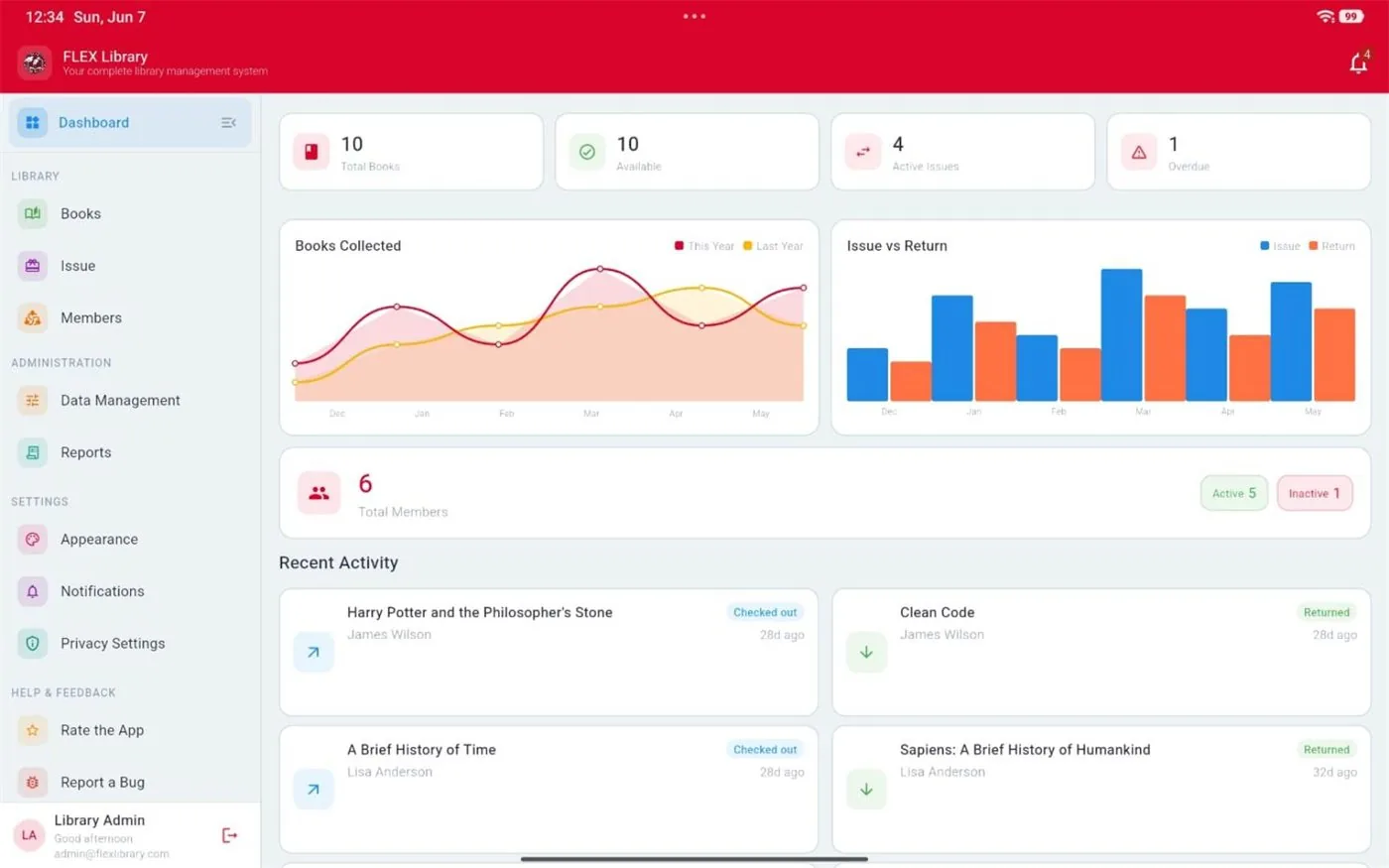
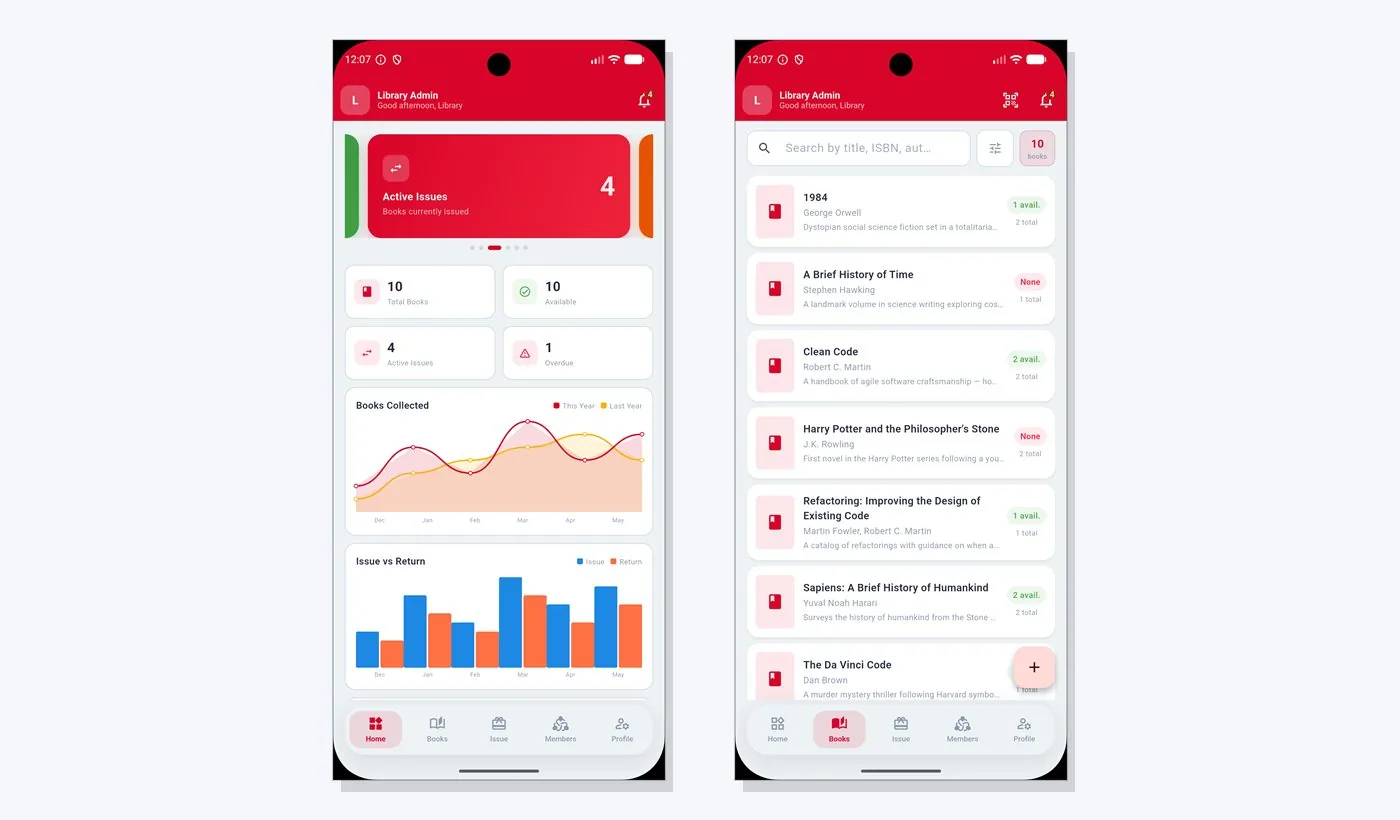
A catalogue is the foundation, not the end goal. Once books are in FLEX Library, you can lend copies to members with checkout, return and renew, approve or reject loan requests, and track overdue loans with configurable fee policies. The dashboard shows totals, availability, active and overdue loans, along with charts for books collected, loans over time and popular books.
The wishlist is also useful at this stage. As you catalogue, you will notice gaps, such as missing volumes in a series or textbooks that need more copies. Add them to the wishlist and mark them acquired when they arrive. Over time, your catalogue becomes a reliable picture of the collection and a guide to what to buy next.
Frequently asked questions
Do I need a dedicated barcode scanner?
No. A smartphone camera is enough for scanning ISBN barcodes in FLEX Library, which keeps costs down for home, school and community libraries. If you are working on a computer, you can type the ISBN into the web app instead. For very large collections, having two people work together, one scanning and one shelving, speeds things up.
What happens if I scan the same book twice?
In a title-and-copy catalogue, a second copy of the same edition belongs under the existing title as an additional copy, each with its own shelf and condition. That keeps your catalogue clean and gives an accurate count of how many copies are available to lend. Check the title list before saving if you are unsure.
Can I catalogue books in Bangla or Nepali?
Yes. Books can be catalogued whatever their language. Where a book has an ISBN, scanning is the quickest route. For books without one, enter the details manually and agree consistent spellings for titles and author names so members can search reliably. A short written style guide helps when several volunteers are cataloguing.
Where can I try FLEX Library?
The FLEX Library web app is available at flexlibrary.flexinfosys.com, where you can enter ISBNs and manage your catalogue, members and loans. For questions about phone scanning, mobile access or setting up a larger collection, contact FLEX InfoTech at info@flexinfosys.com or through the contact page.